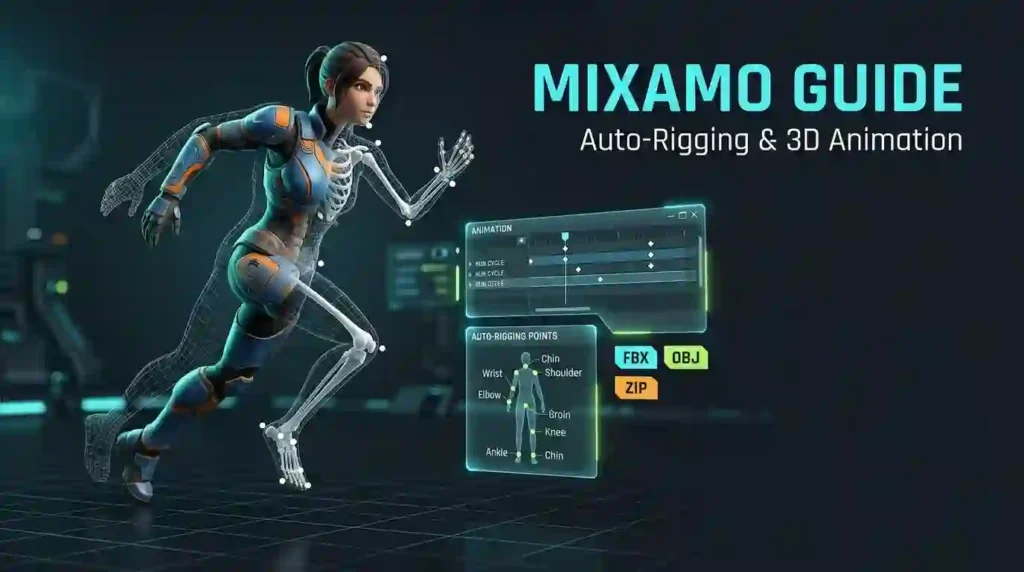
Rigging by hand eats a full week of your schedule. Bone by bone, weight paint by weight paint, you lose days before a single step cycle plays. Mixamo gives you the same skeleton in about four minutes, then hands you thousands of motion-captured clips at no cost.
That speed changes what you attempt. Solo developers ship animated characters they once abandoned. Pitch decks get a moving prototype instead of a gray cube. I have used the service on eleven shipped projects, and the workflow below is what I actually do, including the fixes for the failures nobody warns you about.
What is Mixamo and why do creators rely on it?
Mixamo is a free web service owned by Adobe. You upload a 3D humanoid model, the site builds a skeleton and skin weights for it, and you apply animation clips to that skeleton. Everything runs in your browser, so there is nothing to install, patch, or license.
The service launched its automatic rigging in 2011 and Adobe bought the company in 2015. Adobe then made the characters and animations free to anyone with an Adobe ID. That decision is the reason a solo artist in Karachi can drop the same walk cycle into a game that a mid-size studio uses for a vertical slice.
Two parts power the value:
- The auto-rigger, which uses machine learning to guess joint placement and skin weighting for a bipedal character.
- The animation library, which holds motion-captured clips, cycles, gestures, and combat moves you can preview instantly and download.
Think of it as a speed layer rather than a replacement for your animation package. You use it to clear the boring 80 percent of the work, then you keep your hand-keyed takes for the shots that carry emotion.
Which file types and character rules does the auto-rigger need?
Adobe publishes a short list of requirements, and most rigging failures come from ignoring one line on it. The official page on uploading and rigging 3D characters states that Mixamo accepts three formats: FBX, OBJ, and ZIP.
| Requirement | Why it matters | Fix before you upload |
|---|---|---|
| FBX with textures | Mixamo cannot read loose texture paths | Turn on Embed Media when you export |
| OBJ plus maps | OBJ alone looks gray in the viewer | Zip the .obj, the .mtl, and the textures together |
| One character per file | Helper objects break rig detection | Delete cameras, locators, lights, and reference meshes |
| Neutral T-pose or A-pose | The rigger maps joints from a symmetric shape | Reset the pose and apply transforms |
| Model at world origin (0,0,0) | Offsets cause root motion drift in your engine | Zero out the transform, then export |
| Connected mesh | Floating heads and detached hands fail to bind | Weld or join parts, keep clothing touching the body |
| No wings, tails, extra limbs | Auto-rigging targets bipedal humanoids only | Parent props to a bone later, in your engine |
I keep those seven checks as a pre-upload checklist taped to my monitor. The first time a rig came back with one arm twisted behind the spine, my model had a sword mesh sitting loose in the scene. Removing it fixed the rig in one retry.
How do you auto-rig a custom character in Mixamo?
The rigger wants four placements from you and it does the rest. Adobe documents the marker step as wrists, elbows, knees, chin, and groin, and the solve usually finishes in a few minutes.
- Sign in at mixamo.com with your Adobe ID and open the editor panel.
- Click Upload Character and drop your FBX, OBJ, or ZIP file into the window.
- Rotate the model so it faces the camera straight on, then click Next.
- Drag each marker onto its landmark. Chin goes on the jaw joint, not the nose.
- Choose Your Character With or Without Fingers, then click Next.
- Watch the preview cycle. If the walk looks sane, click Accept and start downloading.
Marker placement is the whole skill. Place the wrist marker at the base of the hand rather than mid-forearm and every punch in the library looks like a wave. My habit is to zoom close, orbit 90 degrees, and confirm the marker sits inside the geometry from the side view too.
One warning about storage. Adobe only keeps your most recent character on the site, so download every rigged file the day you create it and keep it in version control.
How do you search the animation library and build a set?
The library is organized around motion-captured source performances, which is why the clips read well even years later. Adobe notes that the auto-rigger and animation libraries are for bipedal humanoids only, so search by action rather than by species.
Search habits that save time:
- Type the verb first. “Run,” “Climb,” “Point,” “Bow” beat long phrases.
- Toggle the skeleton-with-fingers filter off when you want broad body mechanics only.
- Sort by your camera angle, then orbit while the clip plays to check foot contact.
- Collect candidates in your cart folder before downloading anything, so you test as a set.
A playable humanoid needs roughly six anchor motions. I build these first on every project:
| Game state | Library clip to start with | What to watch for |
|---|---|---|
| Locomotion idle | Standing Idle | Weight shift and breathing, no sliding |
| Walk | Walking | Heel strike and foot plant |
| Sprint | Running | Forward lean and arm swing range |
| Jump | Jumping Down Idle | Landing frame, then blend to idle |
| Interaction | Standing Greeting | Hand path through the shoulder |
| Combat | Sword And Shield Idle | Root motion, so you know what to strip |
Grab the mundane clips before the flash ones. A prototype feels alive when the idle and the walk work, and those two are exactly where reviewers look first.
Which retouch and preview settings should you change before downloading?
Every clip opens in a timeline editor with a control panel, and four settings decide whether the file lands cleanly in your engine.
- Speed slows or scales the whole performance without touching your engine’s blend tree.
- In Place removes root translation, which is what you want for a game character driven by code.
- Arm Space and Hand Space nudge the IK targets when a clip looks like the character is dragging its palms.
- Start and end frame trim lets you keep only the useful part of a long take.
I download In Place for almost everything and let the engine handle velocity. That single choice prevents the two most common bug reports I get from juniors, which are feet that glide and characters that drift off the navmesh.
Preview at your actual in-game distance too. Zoom out until the head is a few pixels wide. Face-level polish that survives that test is real polish, and heavy motion that dies at distance is wasted megabytes.
How do you export and which settings matter most?
The download dialog looks simple and hides the settings that cause most import pain. Here is the panel with the choices I use.
| Setting | Options | My default | Reason |
|---|---|---|---|
| File format | FBX Binary, FBX ASCII, Collada (.dae), .bvh | FBX Binary | Handles skin, textures, and scale reliably |
| Skin | With Skin, Without Skin | With Skin for the first test, Without Skin for animation-only clips | Keeps files light once the rig is proven |
| Frames per second | 30, 60 | 30 | Half the keyframes and still smooth for gameplay |
| Key Reducer | Off, Low, Medium, High | Low or Off | High smoothing can flatten foot contacts |
| Transform | Leave at 77.000 | 77.000 | Keeps scale matching between tools |
| Split by node | On or Off | Off, unless the scene has multiple meshes | One node means one import pass |
Use .bvh only when you want raw motion data to re-target inside a pipeline tool. Collada survives older Linux pipelines. FBX Binary is the right answer for the other ninety percent of cases.
Name files with the state they serve. char_hero_run.fbx tells your future self more than download_0042.fbx, and clean naming is what makes an animation set maintainable after three months away.
How do you retarget Mixamo animations in Unity, Unreal, Blender, and other tools?
Mixamo ships a consistent skeleton, which is why the same file works across so many applications. Each engine has one preferred import switch.
| Tool | Rig setting | Retarget method | Watch out for |
|---|---|---|---|
| Unity | Humanoid avatar | Automatic muscle mapping via Mecanim | Turn off “Bake Into Pose” only when you want root motion |
| Unreal Engine 5 | Skeleton with mixamorig: bones | IK Retargeter asset, or the Free Rig workflow | Rename bones or keep the prefix consistently |
| Blender | Import FBX, then the Mixamo auto control rig add-on | Add-on builds an IK control rig and bakes in and out | Apply scale on import to avoid tiny characters |
| Maya | FBX with skin | Control rig script, then copy animation onto your own rig | Delete the imported skin mesh before keying |
| Godot 4 | SkeletonProfileHumanoid | Engine retargets to yourSkeleton automatically | Match bone count or expect silent failures |
| Reallusion Character Creator / iClone | FBX | CC re-target to its own skeleton | Facial blendshapes do not transfer |
For Blender, Adobe distributes an official add-on page for the auto control rig, which builds a one-click IK rig and bakes animation between the control rig and the skeleton. That add-on is the fastest way to polish a clip by hand without leaving the free stack.
Why did my character fail to rig or animate?
Most failures share a short list of causes. Work down it in order and you will rarely need a forum.
| Symptom | Likely cause | Fix |
|---|---|---|
| Rig stuck on processing | Mesh too dense or scene too dirty | Decimate to a game-ready count, remove extra objects, re-upload |
| Hand or foot bent backward | Marker sat on the wrong joint | Re-place wrist and ankle markers, then update the rig |
| Character is gray | OBJ uploaded without textures | Zip the .obj, .mtl, and maps together |
| Animation does not play | Upload of a rigged file was needed | Send the rigged FBX back up so the skeleton maps |
| Model tiny or huge in engine | Unit mismatch | Export transform 77.000, or scale on import, not both |
| Feet slide badly | Root motion kept while code also moves the mesh | Download In Place, or drive velocity from the animation, never both |
| Zip upload rejected | Multiple characters inside one file | One character per upload, always |
| Login works, editor is empty | Enterprise or federated ID | Use a personal Adobe ID, since Mixamo does not accept those account types |
The rigger is a model, not a person. A chunky stylized character with merged boots and a hood pulled over the shoulders often needs a cleaner body mesh, a temporary pass without the hood, and then your clothing restored after the solve.
What does Mixamo not do?
Honest limits make a good tool usable. Mixamo is superb at generic humanoid motion and silent everywhere else.
- Humanoid only. Horses, mechs, snakes, cars, and quadrupeds are outside the auto-rigger.
- Preset clips only. You cannot key a new move inside the browser and save it to the library.
- Basic curve editing. The web editor trims, scales, and shifts. It does not replace graph editor work.
- No facial performance. You can enable blendshapes and get a neutral face, not a spoken line.
- Library that grows slowly. The catalog is deep in common motion and thin in trends.
- No plugin marketplace or official API access for bulk automation.
- Single active character stored on the account, so local backups are mandatory.
Alternatives earn their place in narrow gaps. Reallusion AccuRIG handles some non-standard humanoids and ships a fuller control rig. Rokoko Video, DeepMotion, and Viggle PINOC pull custom motion from footage you film. Cascadeur gives you physics-assisted keyframe work for shots that must feel authored.
Most teams land on a hybrid: rig in Mixamo, fill the library’s holes with video capture, then polish the hero shots by hand.
Is Mixamo free and can you use it commercially?
Adobe’s own FAQ answers both parts plainly. The service costs nothing, needs no Creative Cloud subscription, and characters and animations are royalty free for personal, commercial, and non-profit projects, including films, video games, illustration, and 3D printing.
Two practical limits shape how you use that freedom:
- Keep the assets inside your finished project. Bundling raw animation files into a pack you resell is not the licensed use case.
- Access rules apply by account and region. Enterprise and federated IDs cannot open the service, and Adobe excludes China-region country codes because that Creative Cloud release does not include web services.
Students get one more good deal, since the same free access covers coursework, thesis films, and portfolio sites without a license audit.
Does the free tool save real money and time?
Hand rigging and hand animation carry a price even when you do the work yourself. Here is a budgeting view I use when I plan a character milestone.
| Task | Manual approach | Using Mixamo | Time saved |
|---|---|---|---|
| Skeleton plus skin weights | 6 to 14 hours | 5 to 10 minutes | Around 95 percent |
| Walk, run, idle set | 2 to 5 days | 20 minutes of search and export | Days |
| Combat or dance cycle | Contract a mocap stage | Library search, then trim | Entire budget line |
| First animated prototype | 1 to 2 weeks | Same afternoon | Faster pitch feedback |
| Ongoing licensing cost | Asset store packs per project | $0 | Nothing to renew |
The real gain is not the invoice you avoid. It is the number of characters you are willing to animate once the cost per character drops to minutes, because breadth usually wins a pitch or a vertical slice.
How do you keep Mixamo animations light for mobile and VR?
A rigged character that looks great on a workstation can sink a phone. Trim at export and re-trim in the engine.
- Export at 30 fps, since 60 fps doubles keyframe count with little gain on a small screen.
- Strip fingers on the rig unless the camera shows hands, which is the single biggest weight map saving.
- Keep one material and one atlas per character, because draw calls cost more than polygons.
- Delete blendshapes you will never drive.
- Simplify the clip set to states you actually reach in playtests.
- In VR, shorten blend times and lift the frame rate on locomotion, since long blends make players ill.
Test on the cheapest device you support, at the exact camera distance the player will see. That one pass tells you which clips to keep and which to replace with a cheaper two-frame crossfade.
Can you build a complete character animation set in five days?
You can, and the schedule below is the one I give new team members. It assumes a clean humanoid mesh and one hour of engine setup each day.
| Day | Goal | Deliverable |
|---|---|---|
| 1 | Upload, rig, and repair the model | Accepted skeleton, stored locally, named char_hero_rig.fbx |
| 2 | Locomotion set | Idle, walk, run, turn, jump, land |
| 3 | Interaction set | Greeting, point, sit, pick up, emote |
| 4 | Combat or job set | Attack, block, hurt, victory, tool cycle |
| 5 | Engine integration and blend pass | Blend tree or state machine, foot-lock fix, mobile build |
Finish each day with a screen recording. Watching your own character for ten seconds reveals sliding feet and popping shoulders that days of importing will hide.
Why do searches for maximo and mixoko lead here?
Brand names drift when people type them fast, so the misspellings are common and search results treat them as the same intent. Neither refers to a different product.
- Mixamo is the Adobe service, spelled M-i-x-a-m-o, at mixamo.com.
- Maximo usually means IBM’s asset and work management platform, or a mistyped Mixamo.
- Mixoko is a keyboard slip, and it resolves to this same tool.
If a tutorial title reads “maximo animation” or “mixoko rigging,” you are almost certainly watching a Mixamo walkthrough. Type the correct spelling when you search, since the official Adobe help pages, the auto-rigger, and the animation library all sit behind the real brand. That single change skips a layer of clickbait blog spam and puts the primary source in your tab.
Your next step is one rigged walk cycle away
You now know the file rules, the marker trick, the export panel, and the retarget switch for your engine, which is more than most tutorials share. Close this tab with a real model in hand. Upload it, rig it, drop in a walk, and export at 30 frames per second with In Place on.
Then put that moving character in front of one person this week and watch where their eyes go. That reaction tells you more about your game than another week of setup work ever will.
Frequently asked questions
Is Mixamo free for commercial games?
Yes. Adobe offers the service at no cost with an Adobe ID and lists both characters and animations as royalty free for personal, commercial, and non-profit projects, including video games and films.
Can I rig a non-humanoid model, like a dog or a mech?
No. Adobe states that the auto-rigger and animation libraries support bipedal humanoids only, so quadrupeds, vehicles, and creatures with wings or tails need a hand-built rig or a different tool.
What happened to Adobe Fuse, and does that break the workflow?
Adobe retired Fuse as a standalone character creator in 2021, which removed the built-in body designer. The rest of the pipeline works fine, because you bring your own model from Blender, Maya, ZBrush, MakeHuman, or a store pack and upload it for rigging.
Why does my uploaded character fail to rig, and what is the fastest fix?
The usual causes are extra scene objects, an asymmetric pose, detached mesh parts, or a model sitting off the world origin. Delete helper objects, zero the transforms, reset to a neutral T-pose, then upload a single clean mesh.
Should I download with skin or without skin?
Start with With Skin so you can verify textures and weight maps in your engine. Once the rig is proven, switch to Without Skin for extra clips, which cuts file size because you keep only the skeleton and motion data.
Can I use Mixamo animations in Unity and Unreal without re-timing them?
Yes, because the skeleton is consistent. Set Unity’s rig type to Humanoid and the clips map automatically, and in Unreal Engine 5 use an IK Retargeter aimed at your own skeleton, since the bones arrive with the mixamorig: prefix.